Have you ever felt overwhelmed by pages of linear notes? Do they seem to hide the connections between ideas? Transforming your markdown files into visual mind maps can revolutionize how you work with information.
This conversion process takes your plain text notes and turns them into engaging diagrams. These diagrams reveal relationships at a glance.
Students cramming for exams discover new ways to organize their thoughts through this approach. Professionals managing projects and developers documenting code benefit too. The visual format makes complex information feel manageable and accessible.
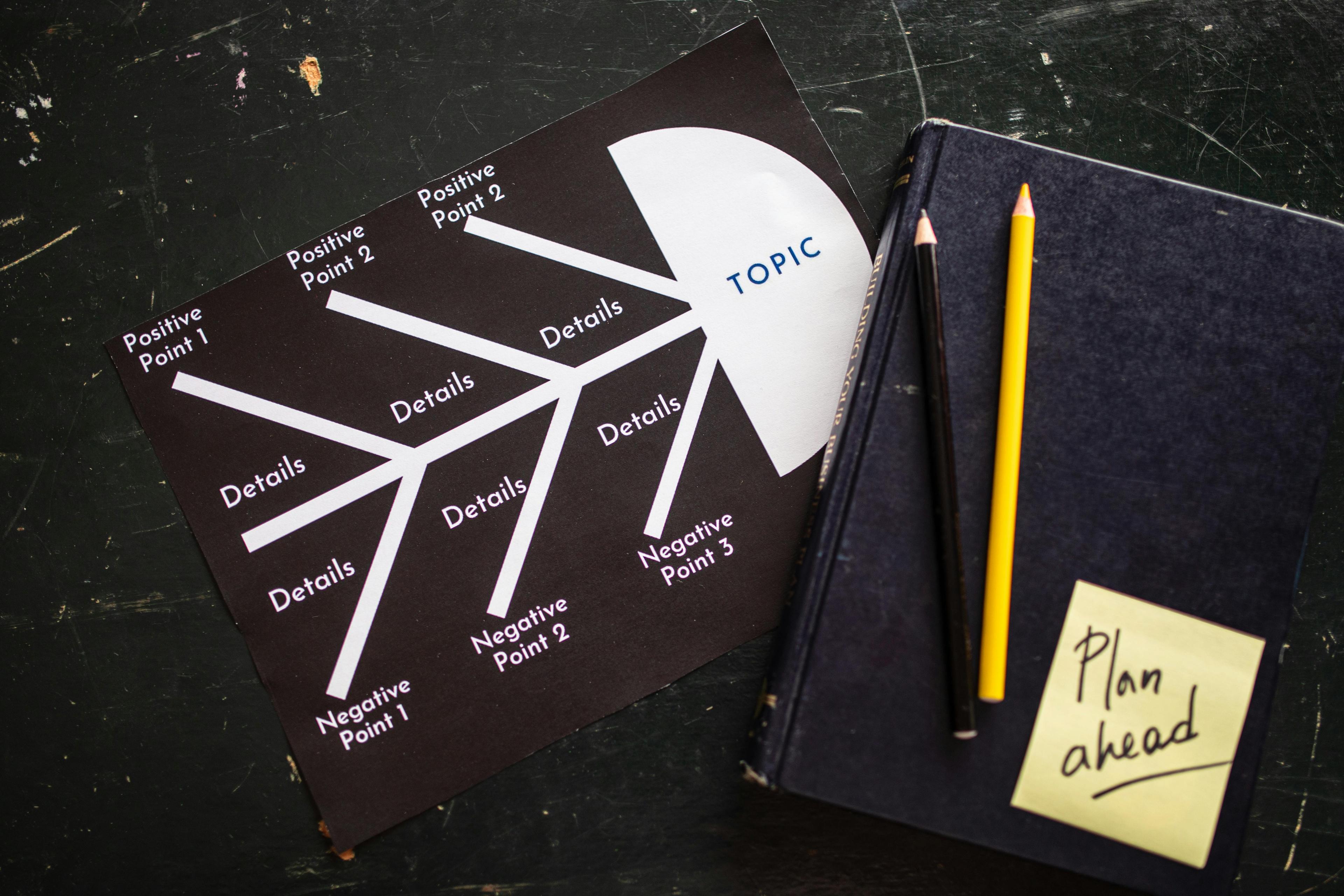
Something remarkable happens when you convert text-based outlines into a map structure. Your brain processes spatial relationships faster than sequential lists. Colors, branches, and hierarchies work together to enhance clarity in ways traditional formatting cannot match.
This guide will walk you through creating stunning mind maps from your existing notes. You'll learn practical techniques that save time. These methods help you see patterns you might have missed in standard text documents.
What Is Markdown to Mindmap Conversion?
The Mindmapping AI process transforms clean, text-based markdown into visual diagrams. It shows relationships and hierarchy at a glance. Both formats prioritize structure and clarity over complicated formatting.
Think of this as translating your notes from one language to another. Your plain text stays the same, but how you see it changes completely. Organized headings and lists become branches and nodes in a mind map.
This makes it easier to spot patterns and gaps in your thinking.
The Basics of Lightweight Markup
Markdown uses simple symbols to structure your documents. You don't need expensive software or technical knowledge. A hashtag creates a heading, asterisks add emphasis, and dashes make lists.
Writers and developers love this text-based mindmapping AI approach because it stays readable. You see exactly what you typed in any text editor. Those simple symbols tell computers how to display your content.
The genius lies in how heading levels work. One hashtag makes a main heading, two hashtags create a subheading. This hierarchy creates a logical structure that mirrors how we organize information naturally.
Lists work the same way. You can nest items under other items using indentation. This nested structure becomes valuable when you convert your markdown file.
Visual Processing Advantages
Our brains process pictures faster than words. You grasp the overall structure in seconds with a mind map. This visual advantage is about deeper insight and understanding.
Mind maps reveal relationships that linear text often hides. From an idea to mindmap, you see which ideas connect and which branches need more development. Colors, spacing, and layout create meaning beyond the words themselves.
Visual learners retain information better when it's presented spatially. Seeing your notes as a diagram engages different parts of your brain. This dual processing strengthens memory and makes connections more obvious.
The spatial arrangement also helps with navigation. You can scan a mind map and jump directly to the branch you need. This clarity and accessibility transforms how you work with your ideas.
From Linear Text to Branching Diagrams
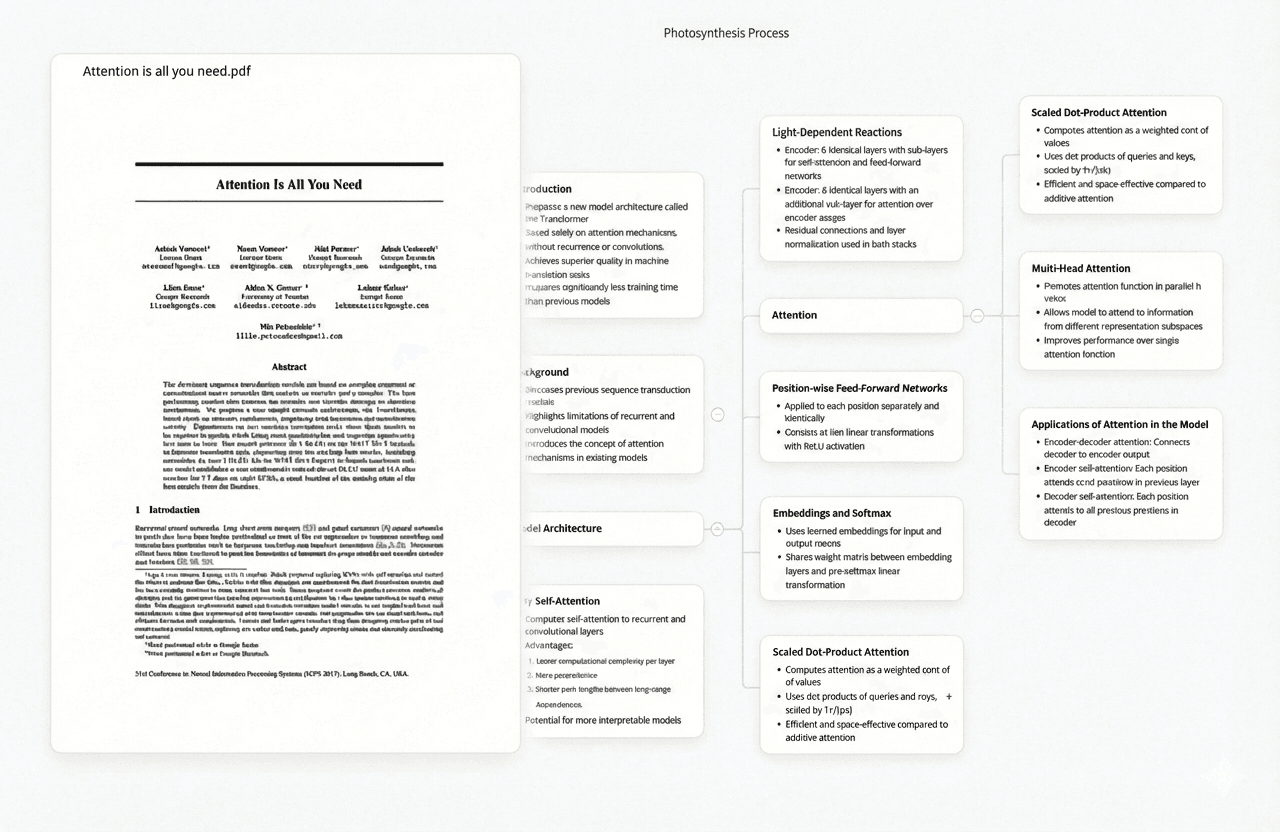
The beauty lies in how naturally the structure translates. Your heading levels become the hierarchy of branches. Top-level headings form main branches radiating from the center.
This connection works because both formats share the same underlying logic. Proper heading organization creates the skeleton of a mind map. The conversion tools simply visualize what was always there in your structure.
Lists and bullet points become leaf nodes at the ends of branches. Nested lists create additional layers of detail that branch out further. The indentation becomes visual distance and hierarchy in the mind map.
This structural alignment means you don't need to redesign your content. Your organizational work pays off immediately. Your careful use of heading levels translates directly into a coherent mind map.
Top Tool to Convert Markdown to Mindmap
Choosing the right conversion tool depends on your workflow and technical comfort level. Some tools work directly in your browser and require zero setup. Others integrate with apps you already use daily.
The best part is that you don't need to be a developer. You can convert markdown into beautiful visual diagrams easily.
Each tool we'll explore offers unique strengths that cater to different needs. Whether you prioritize speed, customization, or advanced features, there's an option that fits perfectly.
Ponder: Browser-Based and User-Friendly
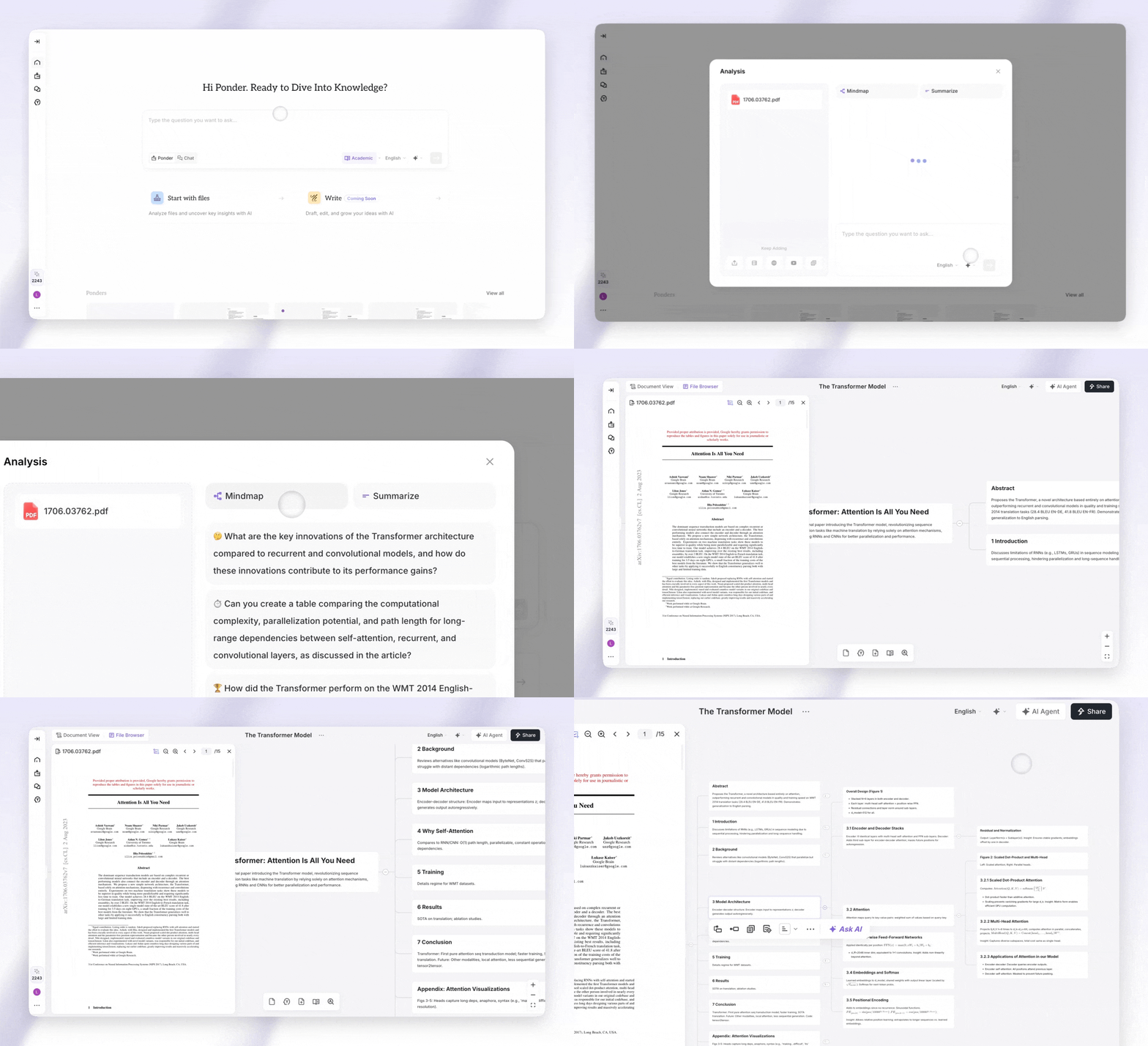
Ponder stands out as one of the most accessible ways to convert markdown to mind map. This browser-based solution welcomes beginners and experienced users alike. You simply open the website, paste your content, and watch your structure transform instantly. This tool also offers other feature like brainstorming mapping, research assistant, and more.
Key Features and Interface
The Ponder interface embraces simplicity while delivering powerful functionality. On the left side, you'll find a text editor where you paste your markdown content. The right side displays your mind map in real-time, updating automatically as you make changes.
The intuitive design means you can start creating within seconds of opening the page. The user-friendly layout removes any learning curve that might slow you down.
Customization options let you adjust colors, fonts, and spacing to match your preferences. You can switch between different theme options to find the style that works best. The collapsible nodes allow you to expand or hide branches easily.
How to Use Ponder for Quick Conversion
Getting started with Ponder takes just three simple steps. First, navigate to the Ponder website in any modern browser. Chrome, Firefox, Safari, or Edge all work perfectly.
Second, paste your markdown text into the left panel or start typing directly. The conversion happens instantly as you type. You'll see your headings turn into nodes and your structure branch out visually.
The entire process typically takes less than two minutes. This speed makes Ponder ideal for meetings, brainstorming sessions, or any quick visual organization.
How to Convert Your Markdown Files into Dynamic Mind Maps
Your ideas can come alive as interactive visual maps. Turning markdown documents into engaging visuals is straightforward and rewarding. You can convert markdown files into stunning mind maps that help you think more clearly.
This guide walks you through each step with confidence. You'll learn how to prepare your content and transform it visually. You'll also discover how to make it truly interactive.
Setting Up Your Document Structure
Proper preparation makes all the difference before you convert markdown into mind map format. Your heading structure forms the backbone of your visual diagram. Use hash symbols (#, ##, ###) to create clear hierarchies that translate into branches and nodes.
Start with a single # for your main topic at the top. This becomes your central node. Then use ## for major categories and ### for supporting details.
Each level creates a new branch in your mind map. Logical categorization matters for clear visual communication.
Think about how you can simplify complex information before conversion. Break large blocks of text into discrete ideas. Group related concepts under common headings.
Here's what makes markdown files convert smoothly:
| Element | Best Practice | Impact on Mind Map |
|---|
| Heading Levels | Use 3-4 levels maximum | Creates clear visual hierarchy |
| Bullet Points | Keep items concise | Forms clean, readable nodes |
| Content Length | Brief phrases work best | Prevents overcrowded branches |
| Organization | Group similar topics together | Produces logical flow and connections |
The better your initial structure, the more your mind map will naturally reflect your thinking process. Take a few minutes to review your headings. Adjust them before moving forward.
Transforming and Styling Your Visual Map
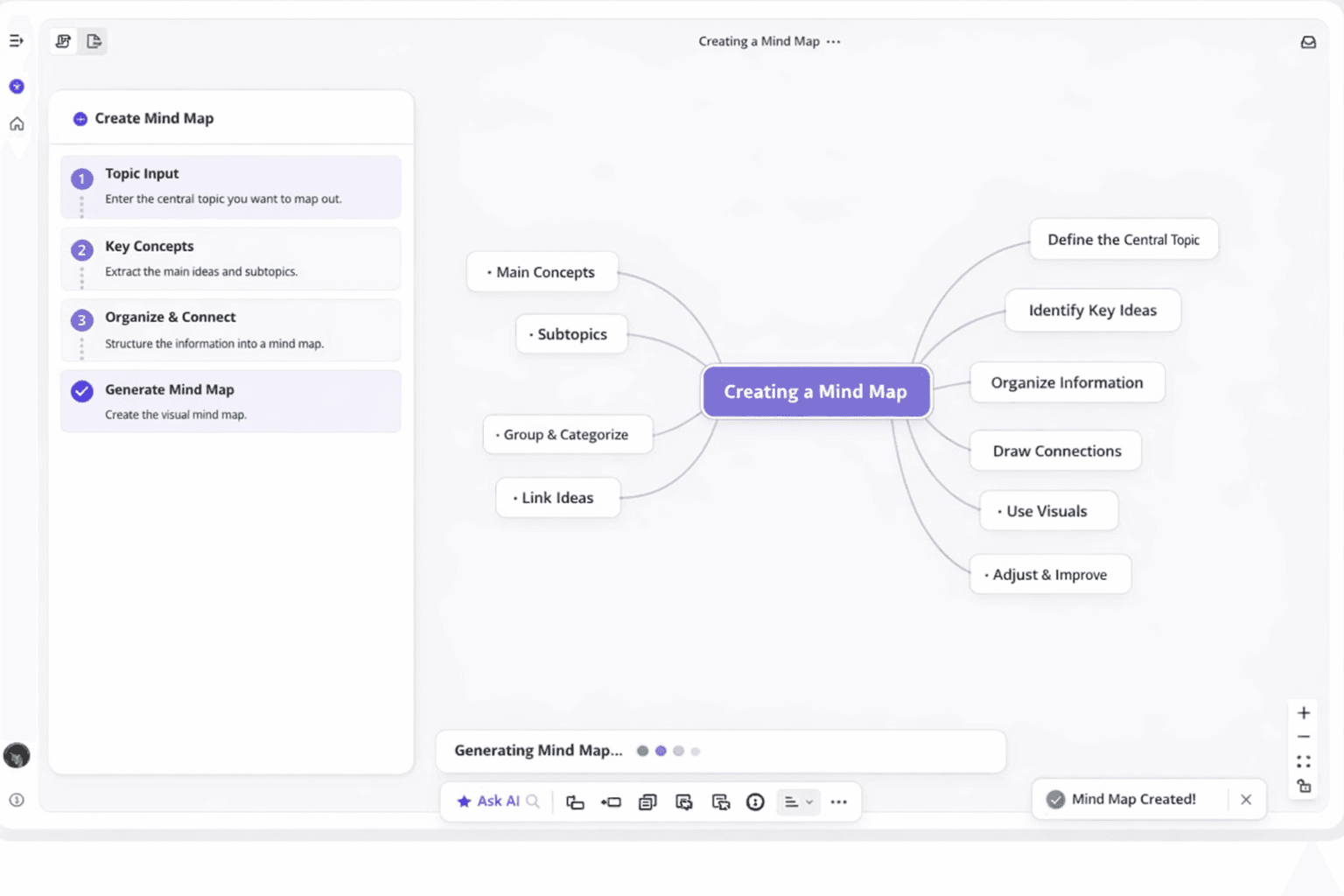
Now comes the exciting part—watching your text transform into a visual masterpiece. Your chosen tool reads your heading structure and generates branches automatically. The magic happens in seconds.
Dynamic mind maps truly shine when you customize them to match your style and purpose. Most tools let you edit colors and adjust themes. You can refine the layout until everything looks perfect.
Start by exploring different theme options. Dark backgrounds work well for presentations. Lighter themes suit printed materials.
You can change individual branch colors to highlight important sections. This creates visual categories that make sense for your content.
Pay attention to alignment and spacing. Adjust how branches spread out from the center. Some tools offer circular layouts, while others provide organizational chart styles or radial designs.
Your mind maps can evolve as your thinking develops. Return to customize and refine them whenever you gain new insights. Add emphasis with bold nodes or adjust font sizes for hierarchy.
The beauty of this workflow is flexibility. You're not locked into your first version. Create a mind map today, then edit it tomorrow as your project grows.
Adding Interactivity and Sharing Options
Static images are useful, but interactive mind maps take engagement to another level. Most modern tools let you add clickable elements that make your diagrams come alive. Viewers can collapse and expand branches, zoom into details, or follow embedded links.
Consider adding hyperlinks within your nodes. Link to source documents, reference materials, or related project files. This turns your mind map into a navigation hub for all your connected resources.
You have multiple options for sharing your finished work. Export as an image (PNG or SVG) for presentations and reports. Save as HTML for interactive web viewing.
Some tools even generate shareable links for collaborators. They can view your mind map in their browser without downloading software.
For teams working together, look for features that support real-time collaboration. Multiple people can edit the same mind map simultaneously. This makes it perfect for brainstorming sessions or project planning meetings.
Think about your audience when choosing export formats:
| Format | Best Use Case | Interactivity Level |
|---|
| HTML | Web sharing and presentations | Fully interactive with clickable nodes |
| PNG/JPG | Documents and printed materials | Static image only |
| SVG | Scalable graphics for design | Vector format with some interactivity |
| PDF | Professional reports and archives | Static with clickable links preserved |
The right format depends on how people will interact with your content. Web-based HTML works beautifully for remote teams. PDFs suit formal documentation.
Sharing isn't just about distribution—it's about making your ideas accessible and actionable. Choose formats that fit naturally into your team's existing workflow. The easier you make it for others to engage with your mind maps, the more value they'll provide.