

Filter and follow up: go deeper from your results
Filter, follow up, and carry the papers you picked into the next step.
Once the first round of results is in, there are usually three things left to do: narrow the range, follow up on one point, and carry the papers you picked into the next step.
Follow-ups and repeat searches use credits too; for the rules see Plans and credits.
The walkthrough below continues the example from Find the most relevant, usable papers.
1. Filter down to the part you want
Narrow the list to what you actually want to look at before judging paper by paper.
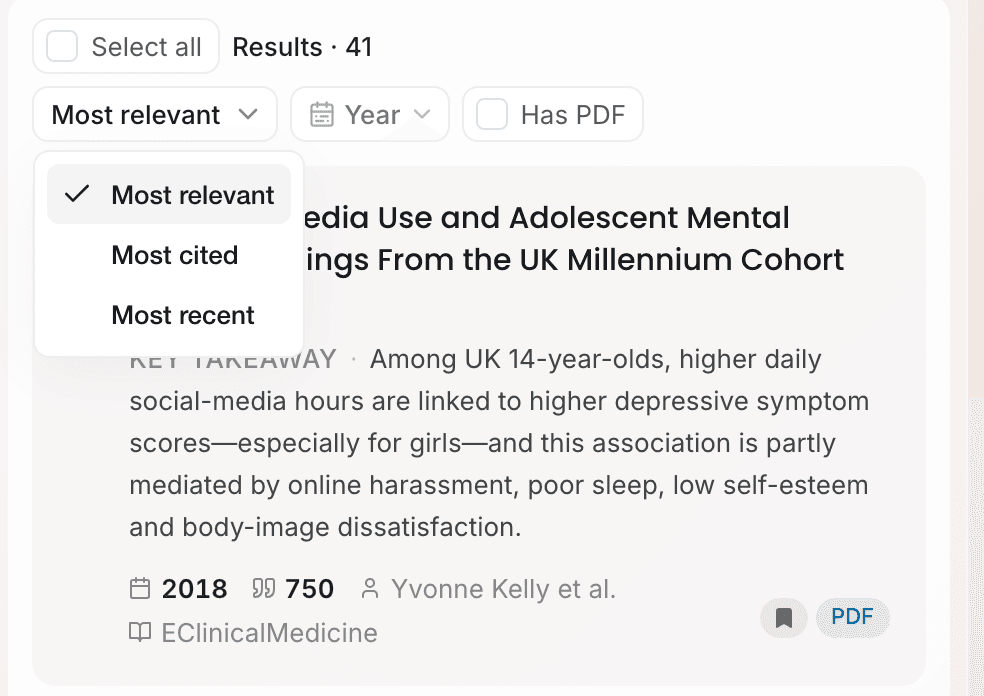
Above the paper list you can change the sort: Most relevant, Most cited, Most recent. Next to it are two filters: Year and Has PDF. In the example we want recent studies we can read in full, so set the year to the last 5 years and tick Has PDF.
2. Follow up, or narrow and search again
One round of results is rarely enough. Write your next question in the input box at the bottom — for example "Which of these studies use a longitudinal design?"
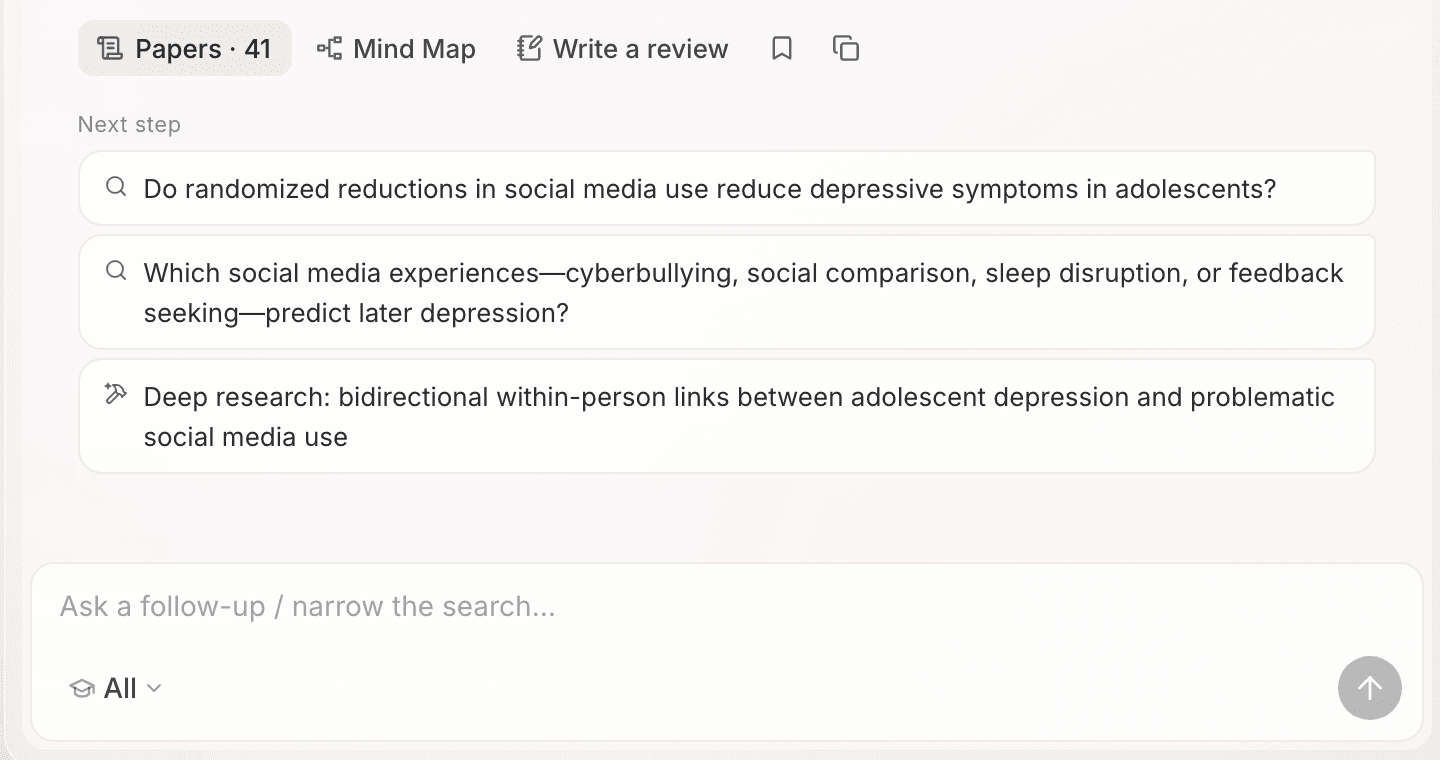
Ponder decides how to respond: where this set of papers is enough, it answers from them; where new literature is needed, it searches again. If it answered directly and you still want a fresh search, click Switch to search below the answer.
Every round's paper list is kept. Click Papers · N below a round and the list on the right switches back to that round.
3. Continue with just the papers you picked
Once a few papers have caught your eye, keep the next step to those alone.
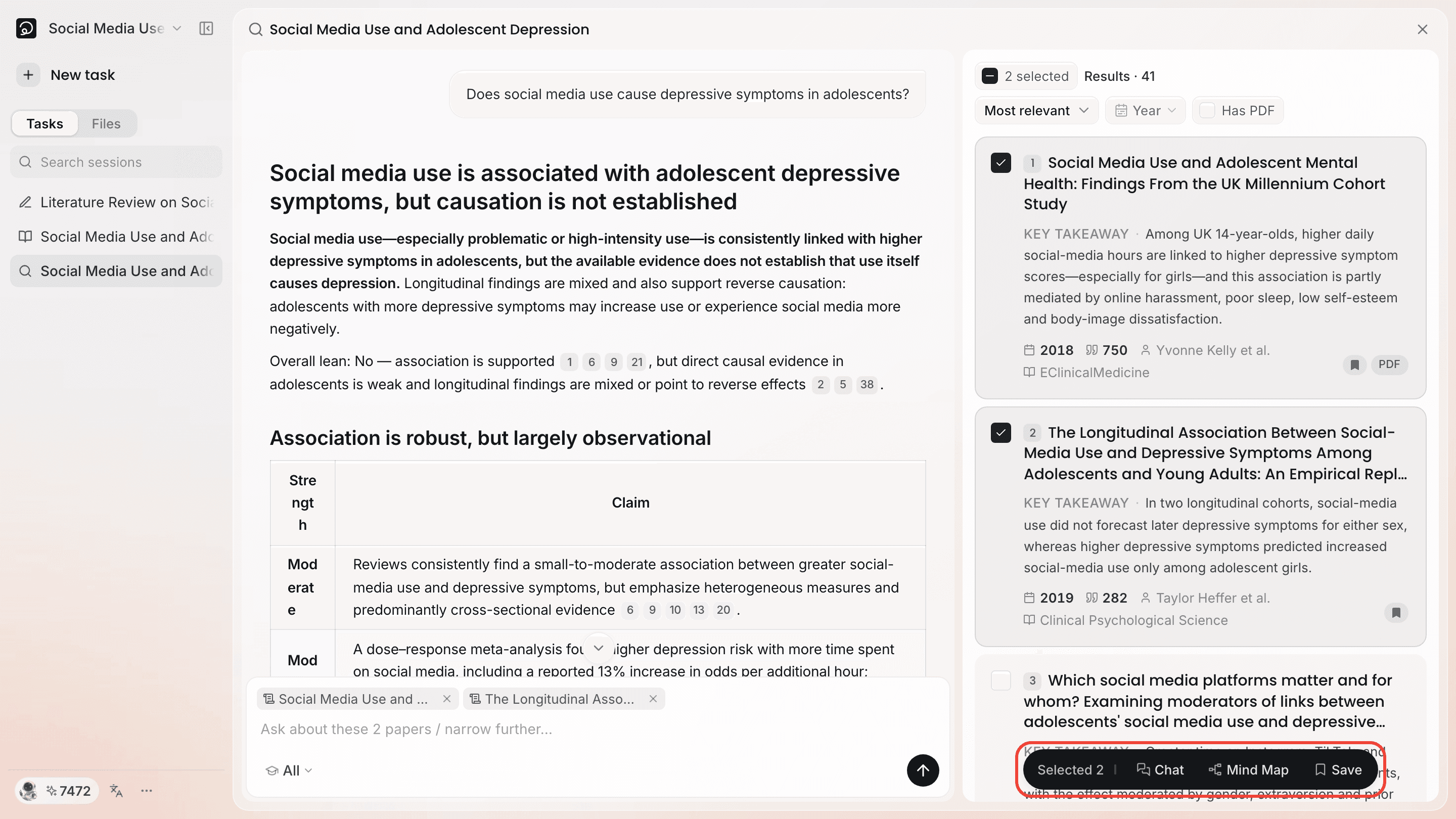
Tick the checkbox in the top left of a paper card, and a Selected N bar appears at the bottom of the list with Chat, Mind Map and Save on it.
- Follow up in the input box after ticking, and Ponder answers around those papers.
- Send directly after ticking, and Ponder looks for studies similar to them.
- Click Save to save the selected papers into the project in one go. Select all above the list selects the whole page.
4. Carry the papers into Analyze or Draft
Below the search review there are two fixed destinations: Mind Map and Write a review. Under Next step at the end of the response, Ponder also suggests a few options based on this round's content, such as a deep research run on one of the issues raised.
Click one and Ponder first gets the material ready for you. The preparation window shows the status paper by paper: Ready papers have a full text, and for Abstract only papers Ponder can read no more than the abstract. If you have the PDF of one of them, click Upload PDF next to it. Once you confirm, Ponder takes this set of papers and this round's question into Analyze or Draft.
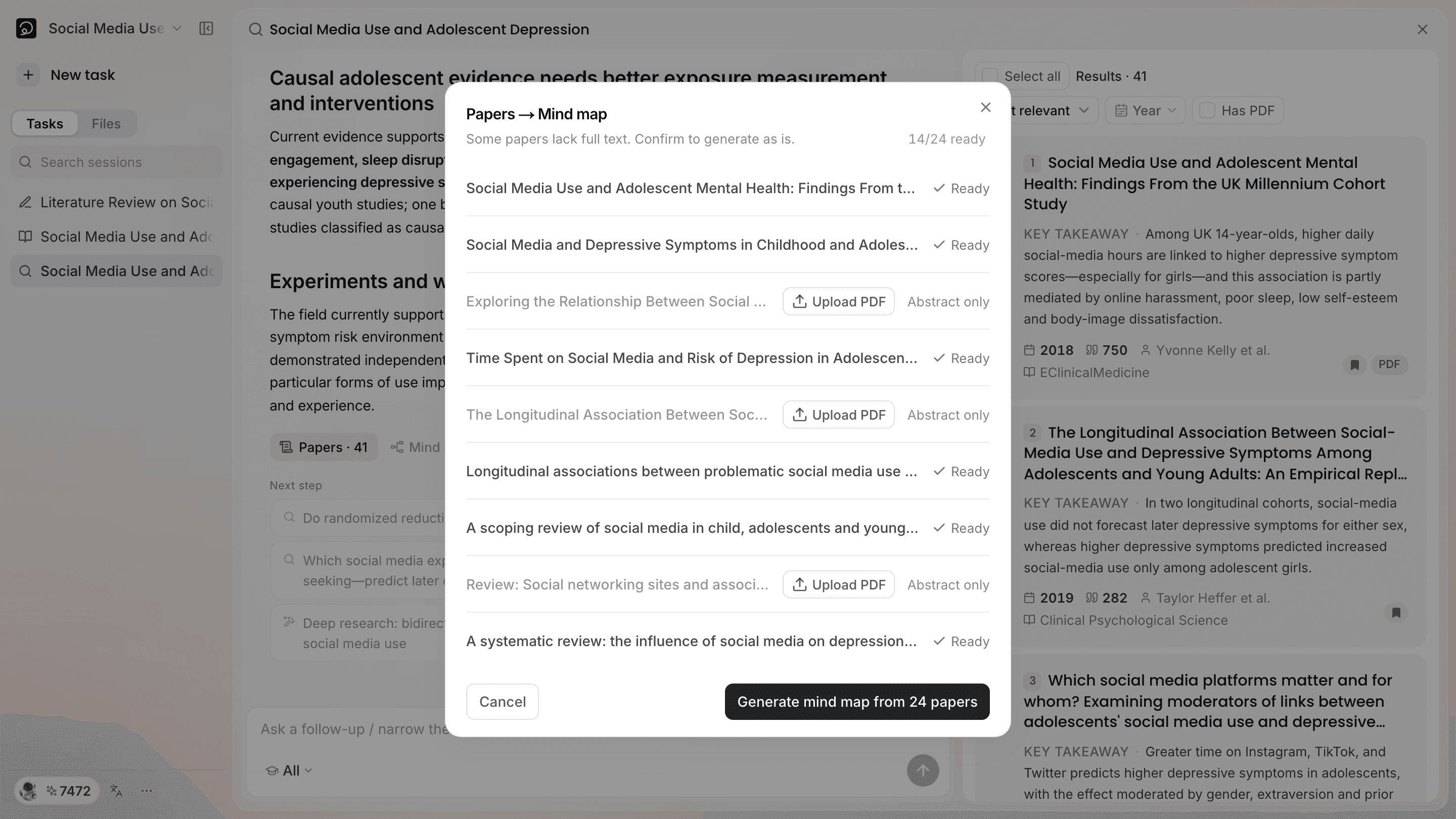
Stay on the page while the material is being prepared, until the window says it is ready.
5. Coming back to this search later
Every search stays in the project. Open the project and, in the task list in the left rail, the ones tagged "Review" are search tasks; open one and every round's papers and review are there, ready for another follow-up.
What to read next
- Read the papers you picked thoroughly: read Understand the literature: mind maps and notes
- Write this set of papers into a review: read Academic writing
- The results are never precise enough: read How to ask a good question