

Citations and tracing claims
Open a citation to check the source, switch styles, review the references.
Everything Ponder writes carries citations, so you can always get back to the material it rests on. There are two kinds, and which one is used depends on what is being cited.
Two kinds: academic citations and inline links
| Academic citation | Inline link | |
|---|---|---|
| What is cited | Academic literature | Everything else: web pages, videos, data files, your own notes and mind maps |
| What it does | A formal in-text citation, typeset in the style you choose and listed in the references at the end | Takes you back to that spot in the material |
When Ponder cites academic literature in a document, it uses academic citations — in notes and articles alike: each one carries complete bibliographic data, enters the reference list, and holds up to a reviewer's or reader's checking. When writing academic articles, Ponder cites academic literature only.
Everything else is cited with inline links, which can point at any type of file.
Open a citation and check the source
Both kinds are checked the same way. Open a citation and the card shows the material's title and the passage Ponder worked from. Read that passage against what Ponder wrote and see whether it is accurate.
To read the context, click Open source text on the card and the material opens alongside, located at that passage. When the file is not in the project, the button is Open link and takes you to the paper's DOI or the web page.
For a citation you do not need, click Remove citation on the card.
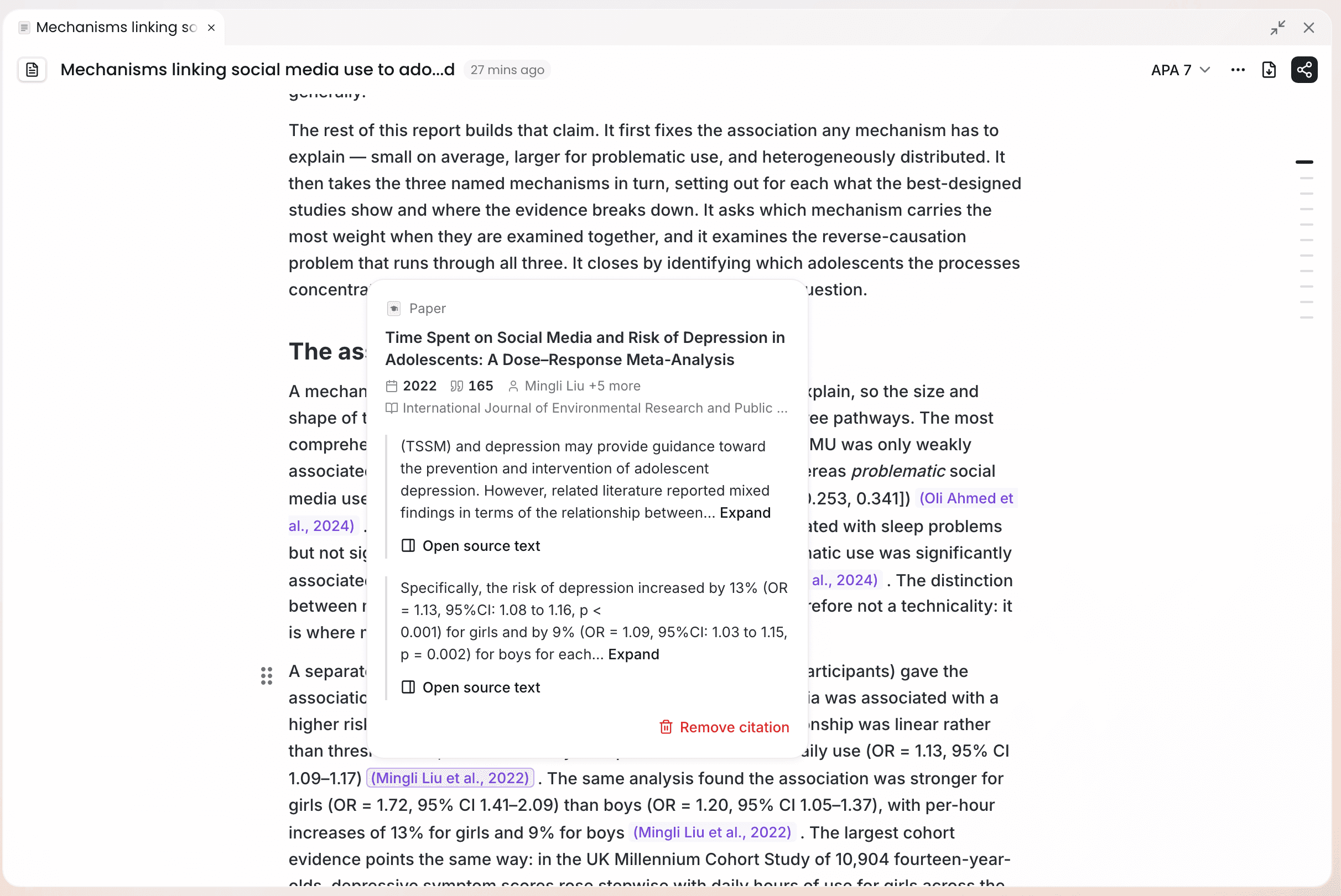
Academic citations
The following applies to academic citations only, and is done inside documents such as notes and articles.
Converting paper citations in older documents
Documents written before academic citations shipped cite papers with inline links, and those papers are not in the reference list. When you open such a document, the top says "N papers not yet cited formally". Click Convert to citations on the right, confirm the papers to convert, and click Convert N. Afterwards they become formal in-text citations and enter the reference list.
Switching citation style
Click the citation style button in the article's title bar and pick one of seven styles: APA 7, MLA 9, Chicago 18 (author–date), IEEE, NLM 2, GB/T 7714-2025, Harvard. The default is APA 7.
In-text citations follow the style: author–date styles such as APA show as "(Author, Year)", while numbered styles such as IEEE and GB/T 7714 show as numbers. The reference list at the end is re-typeset to match.
Reviewing the reference list
References at the end of the document is collapsed by default, with the entry count next to the heading; open it to see them all. Entries are built from each paper's bibliographic data. Some entries carry a badge showing how much of that paper Ponder has.
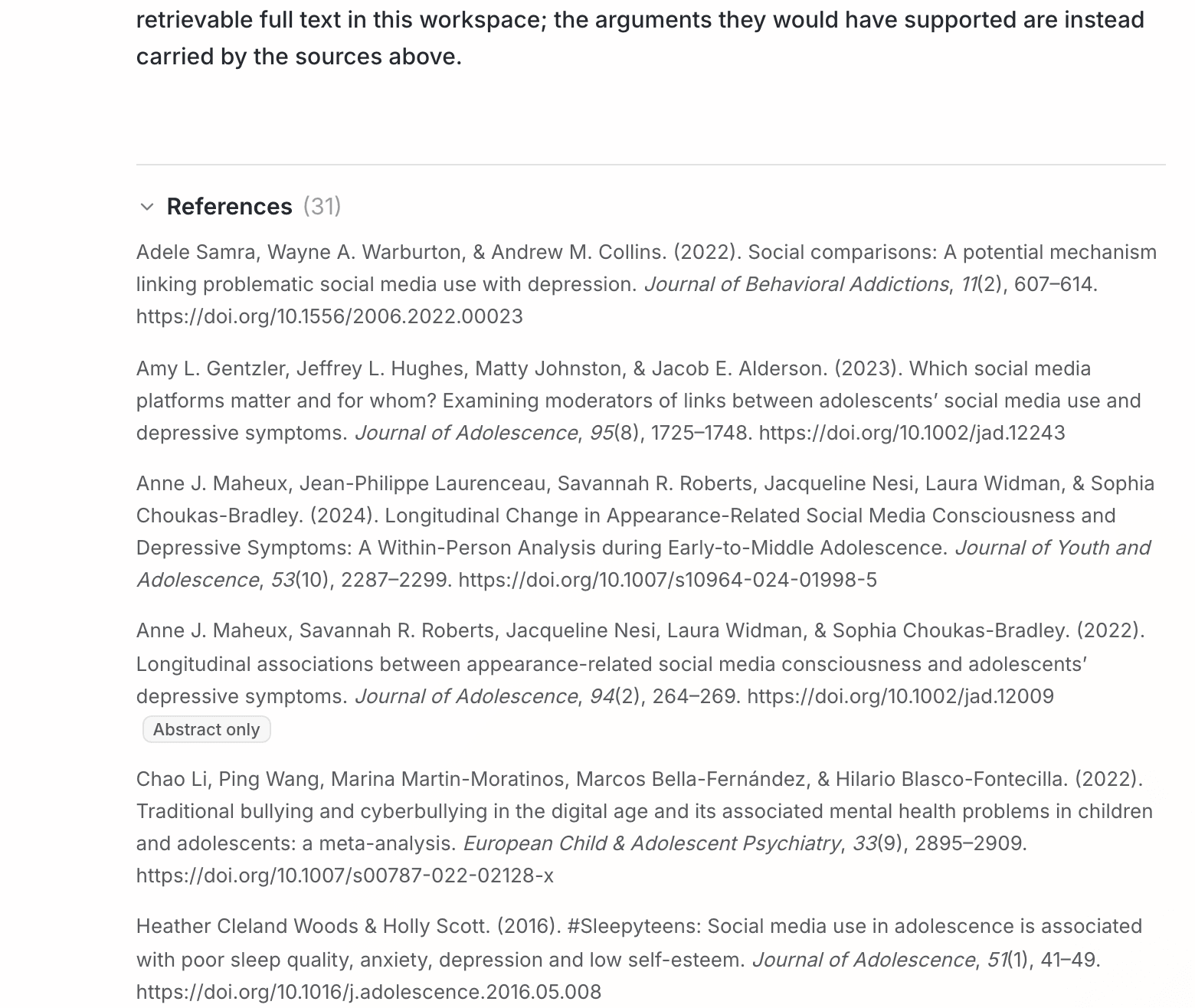
| Badge | What it means | What you can do |
|---|---|---|
| Abstract only | Ponder could read no more than this paper's abstract | Add the full-text PDF, see Import your sources |
| Link only | The project holds no file for this paper, only its DOI or URL | Click Open link and check on the original page |
| Retracted | This paper has been retracted | Replace this citation |
Open and check every citation you plan to keep against its source. The citation card puts the source passage within reach, so checking one takes a single click.
What to read next
- Export the finished version: read Export your work
- Understand what Ponder does for citation accuracy: read Responsible AI and limitations