

Import your sources
What Ponder accepts, how to upload, and how to add full texts.
You already have papers, lecture notes, videos or your own notes, and you want Ponder to work from them. Once the material is in a project, Analyze and Draft can pick it directly, and Ponder also gets to know your topic through it.
What Ponder accepts
- Files: documents (.pdf, .txt, .docx, .pptx), images, audio and video.
- Web and video links: videos from YouTube, Bilibili and Rednote, or ordinary web pages.
- DOIs: when you have a list of DOIs, one per line, the whole set of papers is imported together with their bibliographic data.
Uploading from the input box: the recommended way
When you start a task, hand the material straight to the input box: click "+" in the input box and choose Upload files or Web & video links, drag files into the input box, or simply paste. Ponder takes the material in along with the task, files it into a suitable folder for you, and Analyze and Draft can pick it from there.
While a file shows "Uploading" or "Identifying…" next to it, wait until it says "Uploaded" before sending the task.
Uploading from the left rail: the alternative
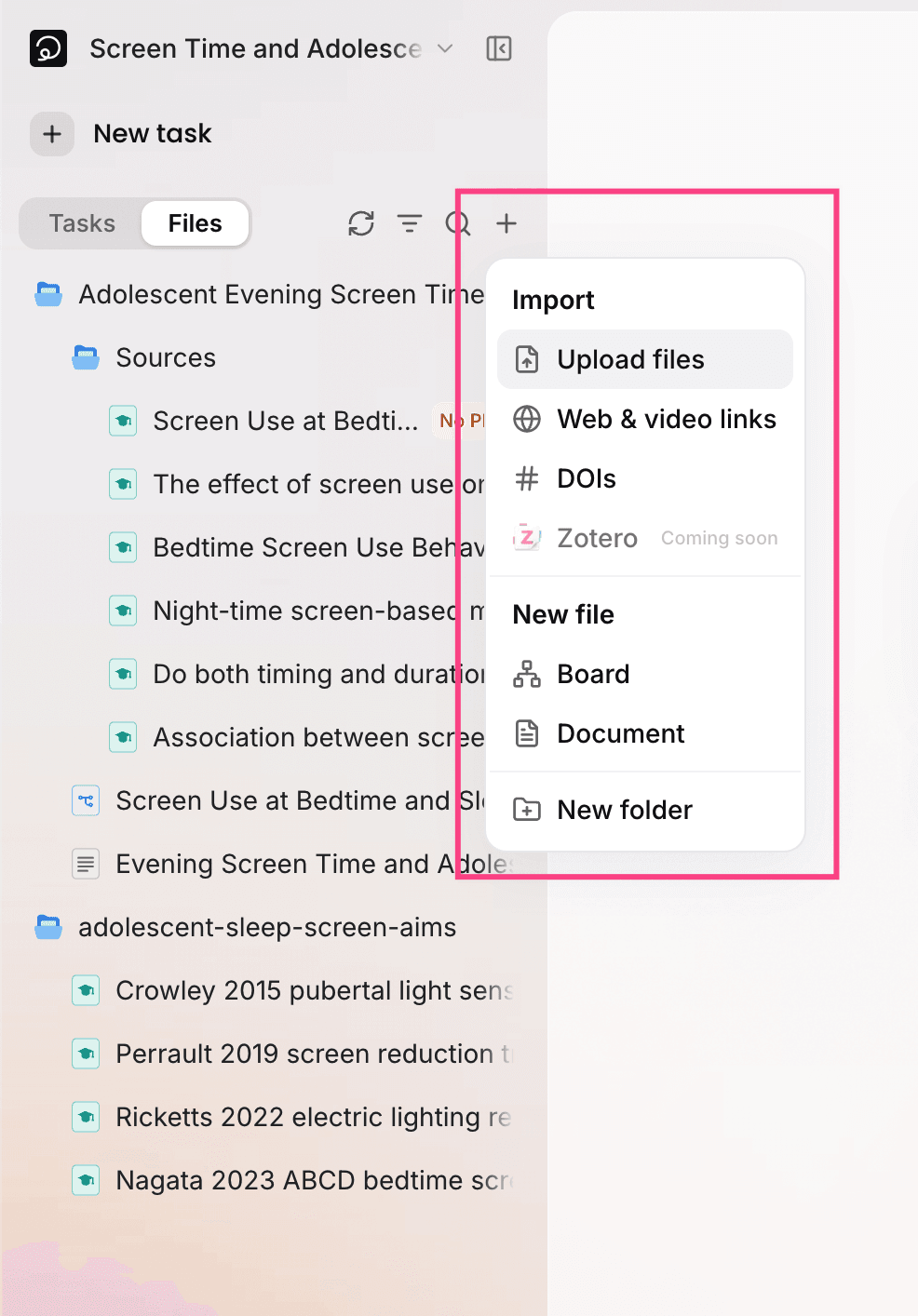
When you do not want to start a task and only want the material in the project, switch to the Files tab in the project's left rail, click the "+" next to the tab, and pick the entry that matches where the material comes from: Upload files, Web & video links, or DOIs.
PDFs are recognized as academic papers automatically
When you upload a PDF, Ponder works out whether it is an academic paper. Recognized papers carry their bibliographic data automatically, shown at the top when you open them: title, authors, year, citation count, journal and DOI.

All of this is used later: when writing, Ponder generates the in-text citations and the reference list from it, and re-typesets them when you switch citation style.
Adding the full text to an abstract-only paper
Papers saved from Search carry their full text when they are open access; for those behind a subscription or paywall, Ponder has the abstract and bibliographic data, and the file tree marks them "No PDF".
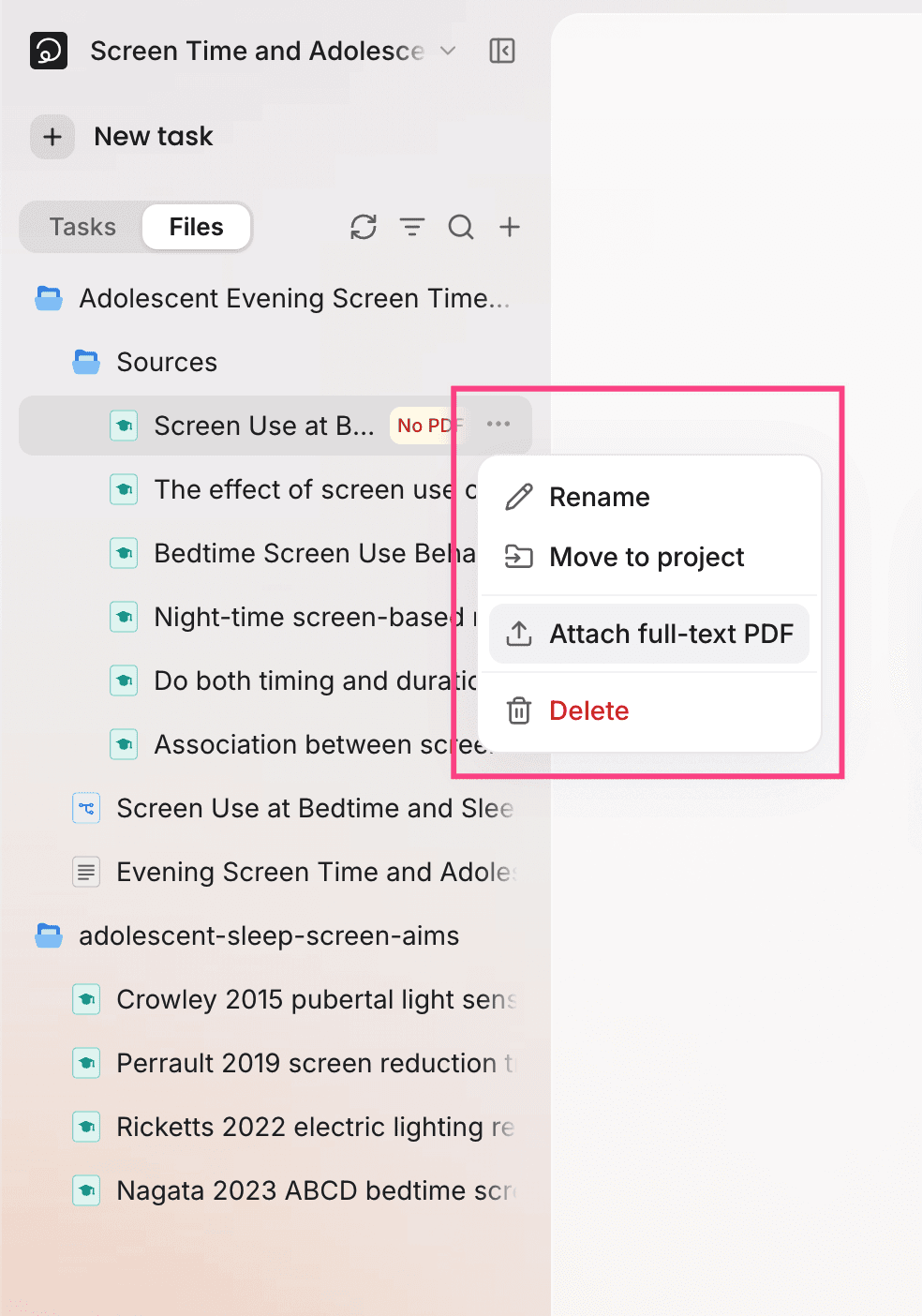
When you have access to a paper through your school or institution, add the PDF: hover over the paper in the file tree, click the "…" at the end of the row and choose Attach full-text PDF; or open it and click Upload full-text PDF. Once it is there, Ponder reads the full text in Analyze and Draft.
Organize your material with folders and file names
At the start of every task, Ponder first looks over the project's folders and file names, then reads the relevant files. Clear folders and readable file names make it easier for Ponder to find the right material.
Choose New folder in the "+" menu to separate material by purpose; click the "…" at the end of a file's row and choose Rename. For why this matters, see Projects: how Ponder gets to know your topic.
What to read next
- Understand one paper or a set of them: read Understand the literature: mind maps and notes
- Have Ponder search and read closely across several rounds on a topic: read Research a topic in depth
- You have no literature yet: read Find the most relevant, usable papers