

Export your work
Export drafts and mind maps as files you can submit.
Your manuscript, mind map or slide deck is finished and you want to submit it, share it, or take it into another tool to keep working.
What each kind of work can be exported as
| Work | Can be exported as |
|---|---|
| Manuscript | Document (Markdown), PDF |
| Board, mind map | HTML, Image (PNG), Document (Markdown), PDF |
| Slides | HTML, Slides (PPTX) |
| Web page | HTML, Image (PNG), Image (JPEG) |
| Chart | Image (PNG), Image (JPEG), Vector Image (SVG) |
1. Open the file and pick a format
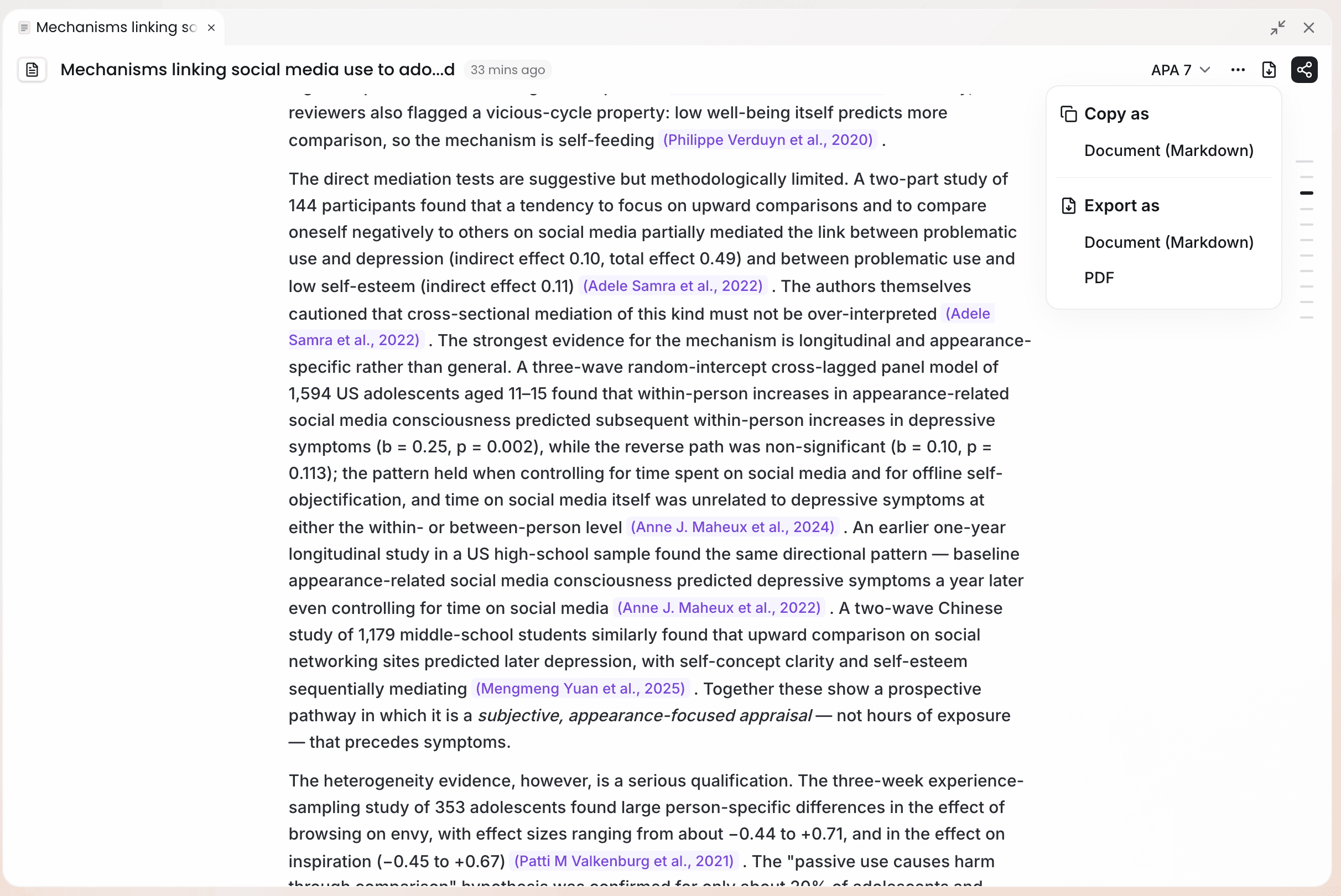
Open the file you want to export and click Copy & Export in the editor's top bar. Pick a format under Export as, and the file is generated and downloaded automatically.
If you only want to paste the content into another tool, choose Document (Markdown) under Copy as and paste it across.
2. Exporting a manuscript with citations
When a manuscript is exported, the in-text citations are set in the style you chose and the reference list is attached at the end.
Before exporting, Ponder checks the reference list. If any cited source has been retracted, it tells you; you can go back and replace that citation, or click Continue export.
Exports use the saved content. Right after editing a manuscript, wait for it to finish saving before you export.
3. Watching the export progress
PDFs and images take a moment to generate. The Tasks card at the bottom right of the page shows the progress, and you can carry on with other things while it runs. When it finishes, the card says "Exported successfully, file is downloading".

Exporting slides as Slides (PPTX) should be done on a computer.
What to read next
- Check citations and the reference list before exporting: read Citations and tracing claims
- Understand what Ponder does for citation accuracy: read Responsible AI and limitations