

Find the most relevant, usable papers
Write a question, and use the review to judge what deserves a close read.
When you want to see what research exists on a topic, or find literature you can cite for a question, start in Search.
You write down a research question and Ponder finds the papers most relevant to it. To help you judge which ones are actually usable, each paper comes with a key takeaway written against your question, and the whole set comes with a search review with citations, so you first see what they say together.
Every round of search and review uses credits; for the rules see Plans and credits.
The walkthrough below follows one question end to end, and you can copy it exactly: "Does social media use cause depressive symptoms in adolescents?"
1. Write down your research question
Writing the question as one complete sentence finds more accurately than a pile of keywords.
Choose the Search tab above the home page input box, enter the example question and press Enter. The scope at the bottom left of the input box defaults to All, covering research papers across every discipline; for questions in medicine and the life sciences you can switch it to PubMed.
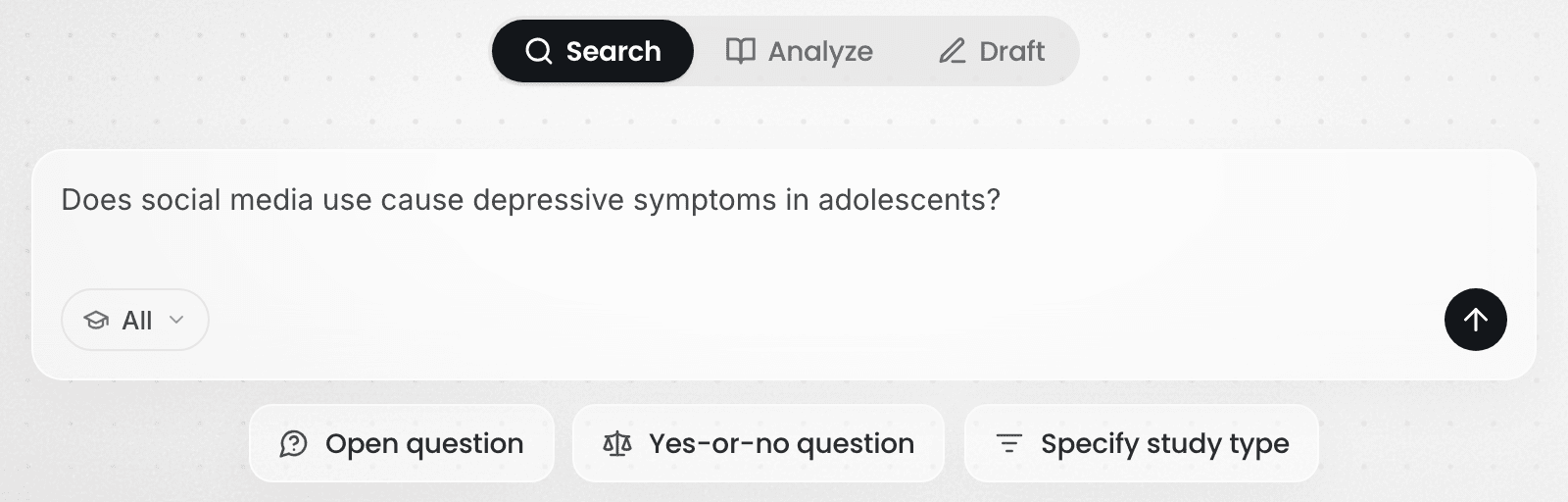
After you submit, the page splits into two columns: the papers found are listed on the right, and the search review is written on the left.
2. Use the review to get a quick read on the papers
Working through dozens of papers one by one is slow. The search review does that first pass for you: how these papers together answer your question, where they agree and where they disagree.
For the example question, watch two things as you read: whether cross-sectional and longitudinal studies reach the same conclusion; and how each study measures "social media use" and "depressive symptoms", and which adolescent age range the sample covers.
Each numbered marker after a claim in the review corresponds to one paper. Hover over a marker to see the paper's title, and click it to open that paper's detail. Whichever claim matters to you, follow its markers to the papers behind it.
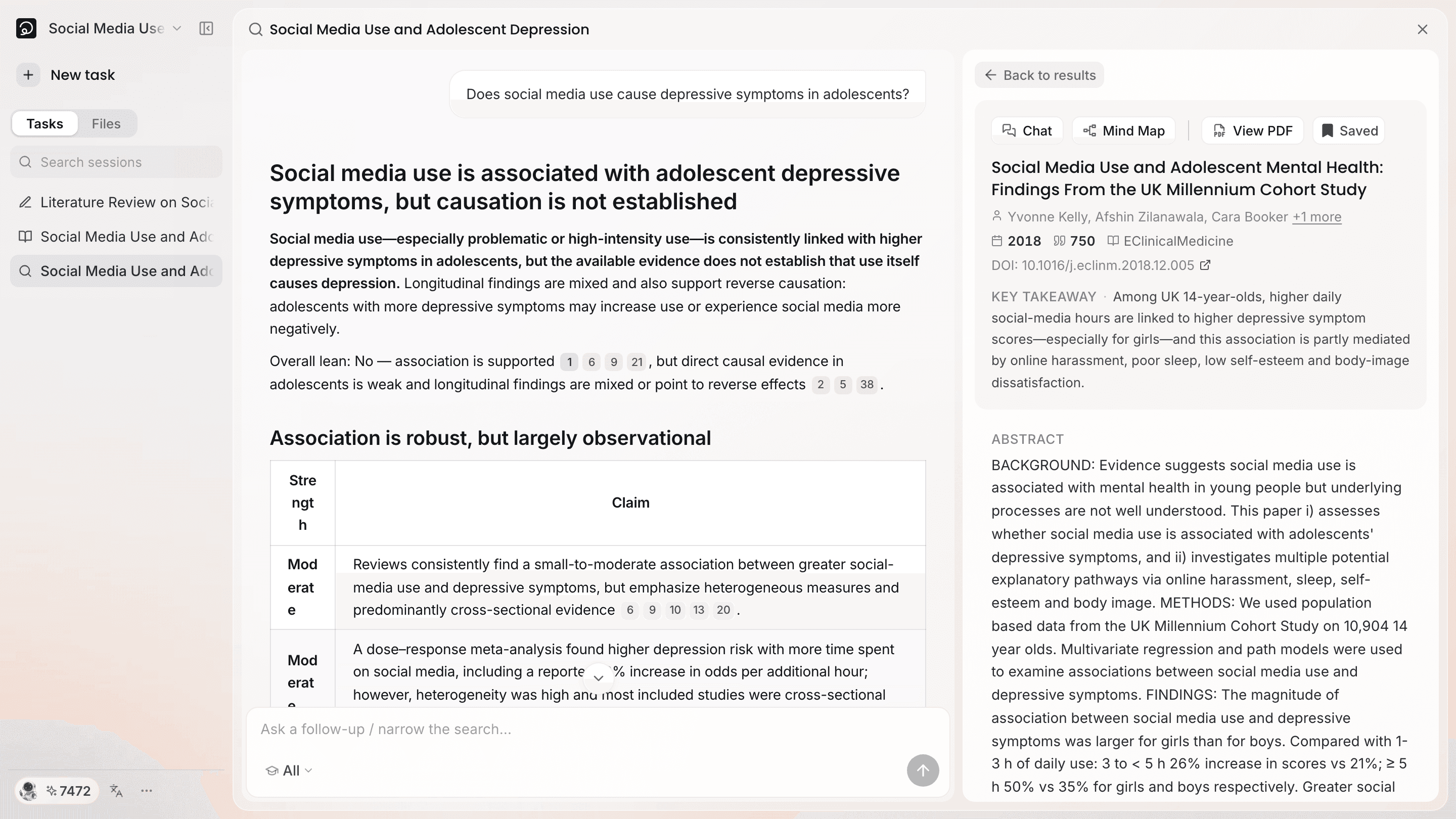
The search review is written from the titles and abstracts of the papers. For specifics such as sample sizes and effect sizes, and for the conditions under which a conclusion holds, open the source text to confirm.
3. Decide which papers deserve a close read
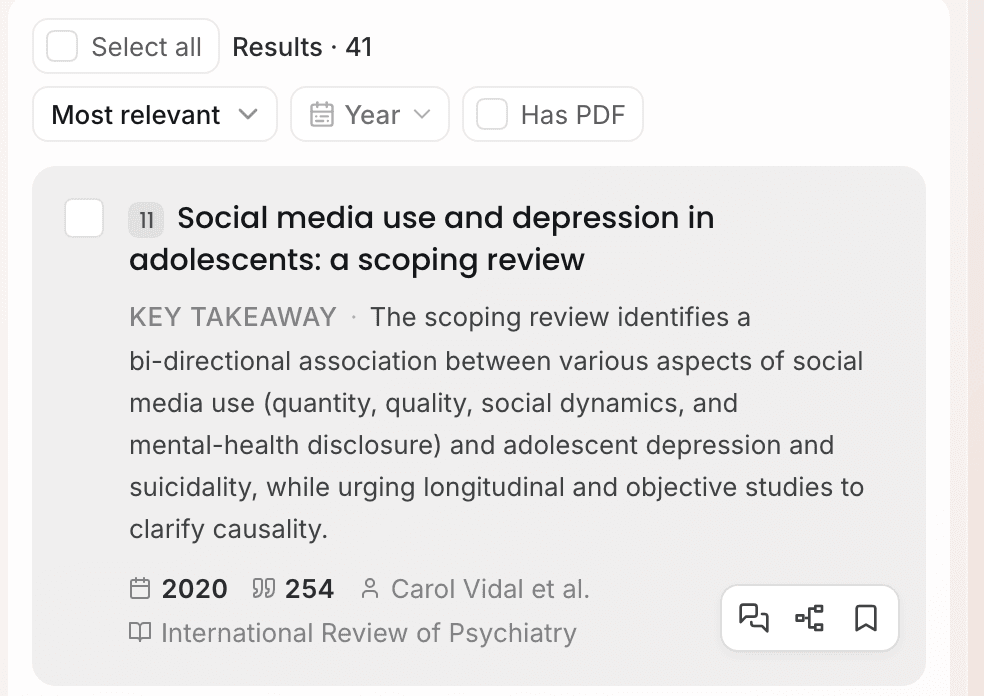
Back in the paper list on the right, each paper card carries a few clues to help you judge.
- Key takeaway: what this paper says about your question. The takeaway alone is often enough to decide whether to look closer.
- The number before the title: a number means the review cited it, and it matches the marker used in the review.
- Highly Cited, Preprint and Retracted badges: they help you weigh the paper. Do not cite retracted papers.
- PDF badge: papers with this badge can be opened in full text inside Ponder.
Click a card to open the paper detail and read the full abstract; where there is a full text, click View PDF to read it directly.
4. Save the papers you picked into the project
Saved papers stay in the project and can be picked directly later in Analyze and Draft.
Hover over a paper card and click the bookmark icon (save) at the bottom right of the card. Ponder shows where the paper was saved; click View in that message to jump to the paper in the file tree.
To keep the review together with the papers it cites, click the bookmark icon below the review (Save as file) and choose Answer + N cited papers.
What to read next
- The results are off from what you wanted: read How to ask a good question
- To keep asking, filter, or hand the papers you picked to Analyze and Draft: read Filter and follow up: go deeper from your results