

Projects: how Ponder gets to know your topic
Set up a project for a topic so Ponder understands your research.
When you have several topics running at once, papers, notes and drafts scatter easily. Ponder uses projects to keep everything for one topic in one place.
A project does a second job as well: Ponder gets to know what you are researching through the files in it. What you put in the project decides what its answers are built on.
The walkthrough below uses the topic "social media use and adolescent depression".
1. Create a project for your topic
Name the project after the topic so you recognize it at a glance in the project list.
In the Projects area lower down the home page, click the first card, New project, and enter "social media use and adolescent depression". Your account comes with a project already — use it for quick experiments, and create a new one when you start a topic in earnest. You can change the name later: click the "…" in the top right of the project card and choose Rename.
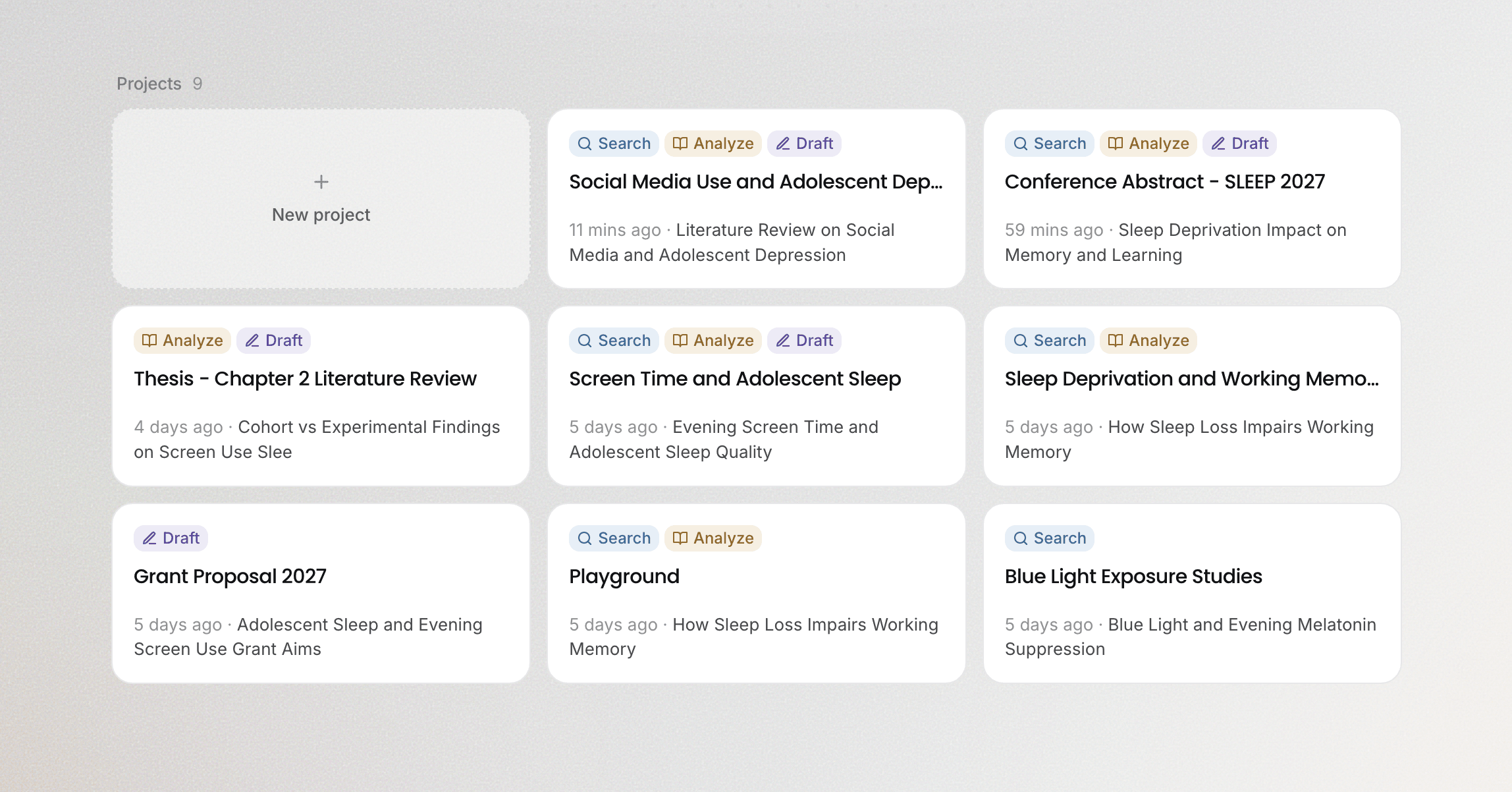
Before you start a task, open this project from the Projects area on the home page. Inside the project the input box is right there on the page: choose Search, Analyze or Draft above it and write down what you want to do. Tasks started this way, and everything they produce, stay in this project.
2. Let Ponder get to know your topic
At the start of every task, Ponder first looks over the project's folders and file names, then opens and reads the files related to your question. When the project does not hold enough, it searches the literature itself. Knowing this order tells you how to make it understand your research better.
- Bring in the material that represents your angle: your research proposal, reading notes, papers you have already read. That way Ponder knows your research, not just the general state of the field. In the example, the project holds the research proposal and the 12 papers saved during Search, and every later task builds on them.
- Give files names you can read: file names are Ponder's clue when it looks for material. "Reading notes — longitudinal studies" is easier for it to get right than "New document 3".
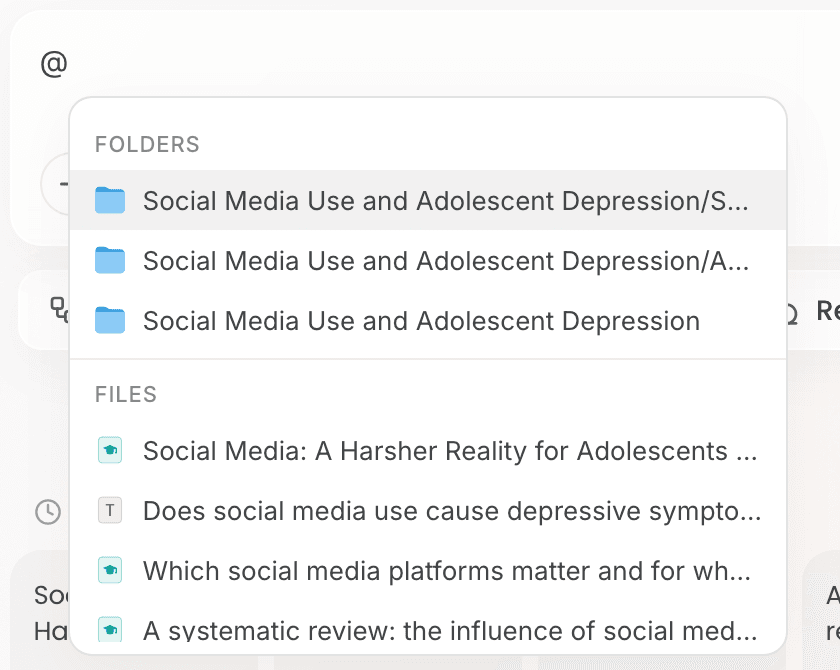
- Point with @ when the basis is specific: type @ in the input box and pick the file you want it to work from.
- One project per topic: when everything in a project belongs to the same topic, one pass over it shows Ponder what you are researching. Create a new project when you start a new topic.
3. Find your files and tasks inside a project
Inside a project there are two tabs at the top of the left rail.
- Files is the project's file tree: the material you uploaded, the papers saved during Search, and the mind maps, notes and drafts Ponder generated.
- Tasks lists everything you have started in this project. Click a task and its conversation opens together with the files edited or generated in it, so you can pick up where you left off. Click New task to start from an empty conversation.
Once a task is under way, Ponder runs it to completion; closing the page makes no difference. When you come back, open it under Tasks and the progress and results are there.
What to read next
- Bring material into the project: read Import your sources
- Start from a question and find literature: read Find the most relevant, usable papers
- Choose which step to enter from: read Search, Analyze, Draft: where to start