

Academic writing
Write a review, paper or report, and refine it section by section.
Ponder writes literature reviews, papers and research reports. You give the topic, the requirements and the sources to cite, and it writes to academic structure: the argument is layered, every citation corresponds to real literature, and opening one shows the passage it rests on.
Writing uses credits; for the rules see Plans and credits.
The example below writes a literature review on the relationship between social media use and depressive symptoms in adolescents, citing the papers saved in the project.
1. Pick the kind of manuscript, write the topic and requirements
The three kinds are written differently, so pick the right one first.
| Kind | What it is |
|---|---|
| Literature review | A survey of existing research in a field: what each camp found, where they disagree, what is missing |
| Paper writing | An argument built around one claim, citing the literature in the project |
| Research report | Conclusions and evidence for a specific reader, conclusion first |
Choose Draft above the input box and click Literature review. The input box is prefilled with "Write a literature review on: "; continue with your topic and requirements, such as length, readership and the disagreements to focus on.
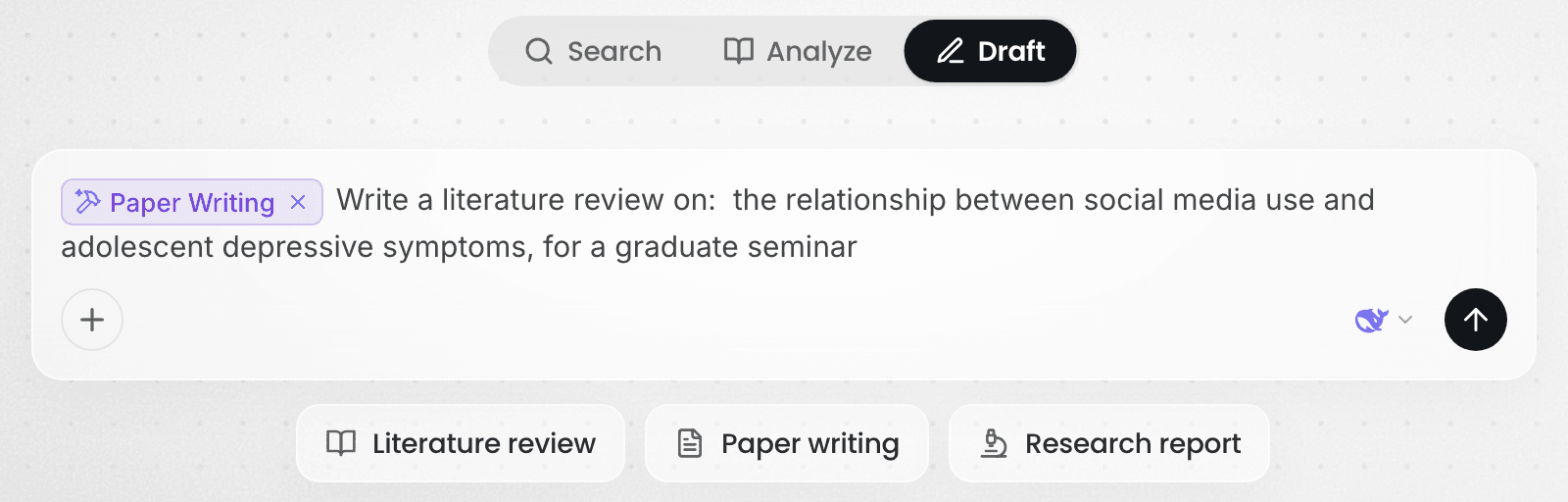
These three entry points are only a starting point — you can write any writing requirement in your own words: which sections you want, what structure to follow, which journal's readership to write for. In a conversation already under way, type "/" and choose Paper writing to carry on and write up what you have been discussing. For how skills work, see Use skills.
2. Point it at the sources to cite
Type @ in the input box and select the files to cite, or select a whole folder. In the example, select the folder holding the papers saved during Search.
When you name no sources, Ponder looks for files in the project related to the topic itself; where the project does not hold enough, it searches the literature and brings more in. If you want the manuscript built on what you have read, point it at that material.
3. Answer its questions
Before it writes, Ponder opens an "AI needs your input" card and confirms the direction with a few multiple-choice questions, usually covering where the topic should focus, the genre of the manuscript, the readership and purpose, the length, and whether to search for literature beyond your own material. Every question has an Other option you can fill in yourself. Click Submit when you are done; whatever you already made clear in step 1, Ponder asks less about or not at all.
4. Review what was written
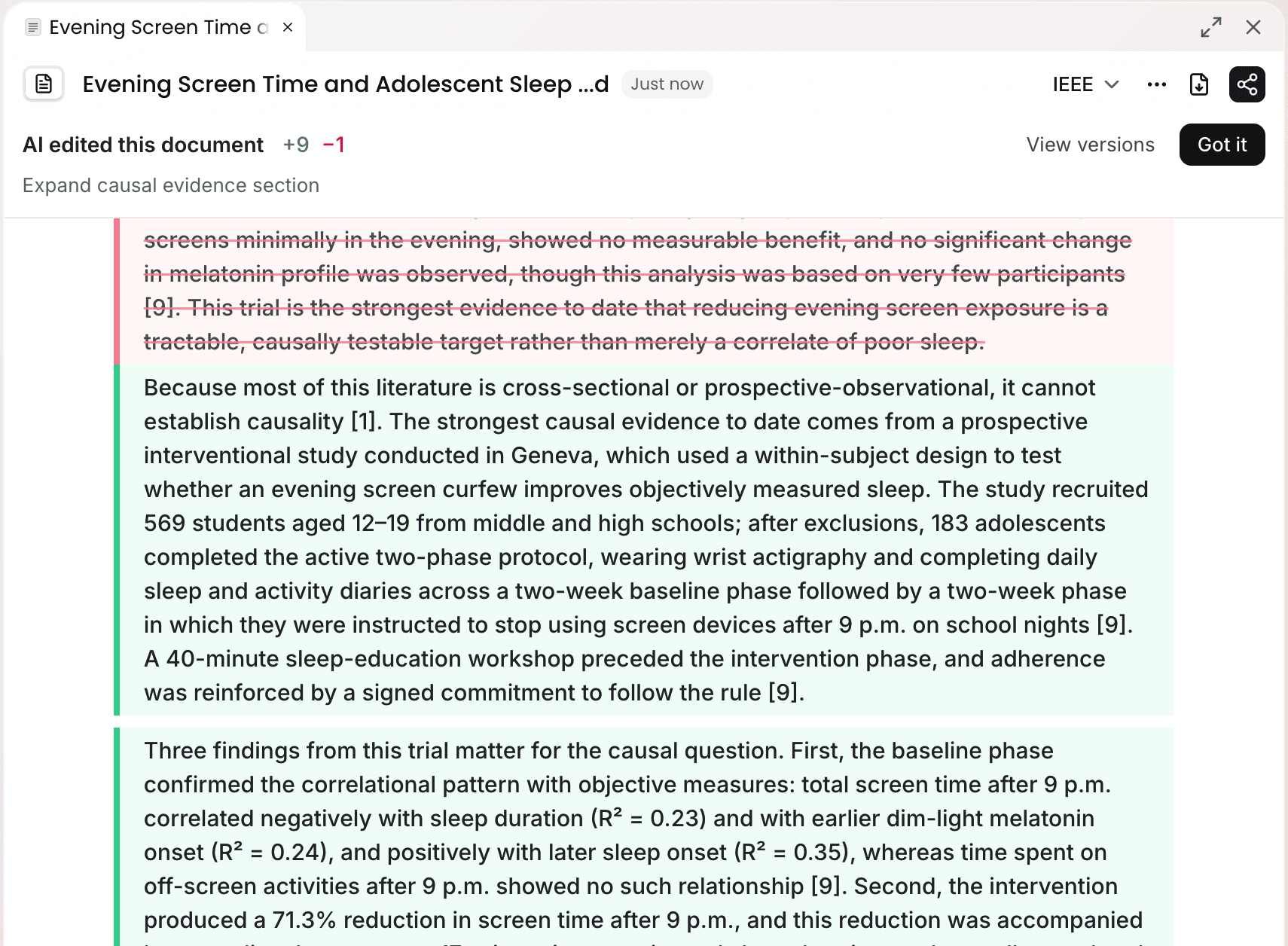
While writing is under way the manuscript is read-only, and the top says "AI is editing this document…". When it finishes, this round's changes are shown directly in the manuscript: green for additions, red for deletions, with the number of lines added and removed at the top. Click Got it when you have read them to return to an editable manuscript; click View versions to open the version history.
5. Refine section by section
Once the manuscript exists, work with Ponder until you are satisfied with it. The three ways of editing mix freely.
- Ask in the conversation: for example "In section 2, discuss cross-sectional and longitudinal studies separately".
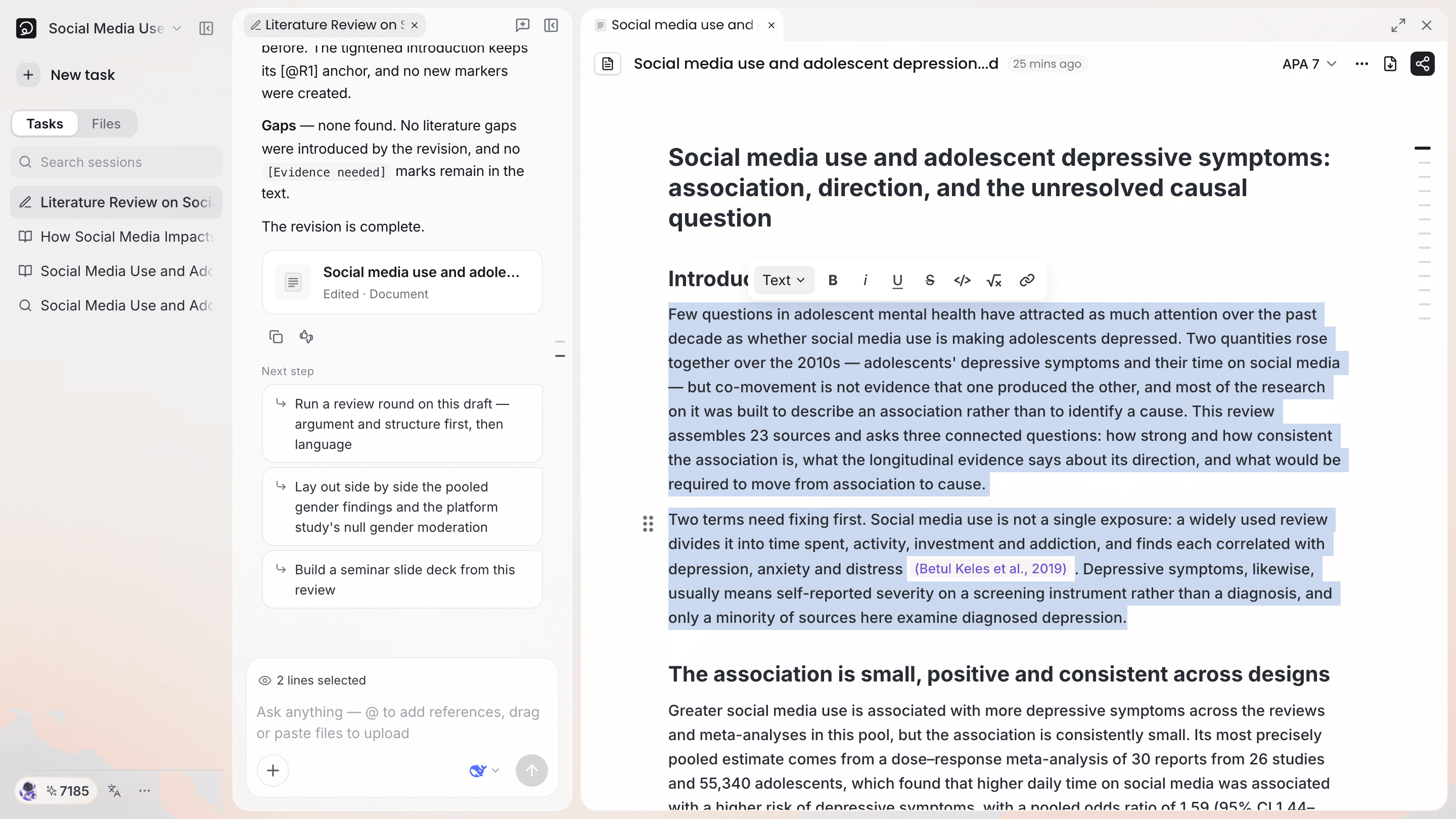
- Ask about one passage: select that passage in the manuscript, and N lines selected appears above the conversation's input box; what you ask then applies to it alone.
- Edit it yourself: the manuscript is an ordinary document you can edit at any time.
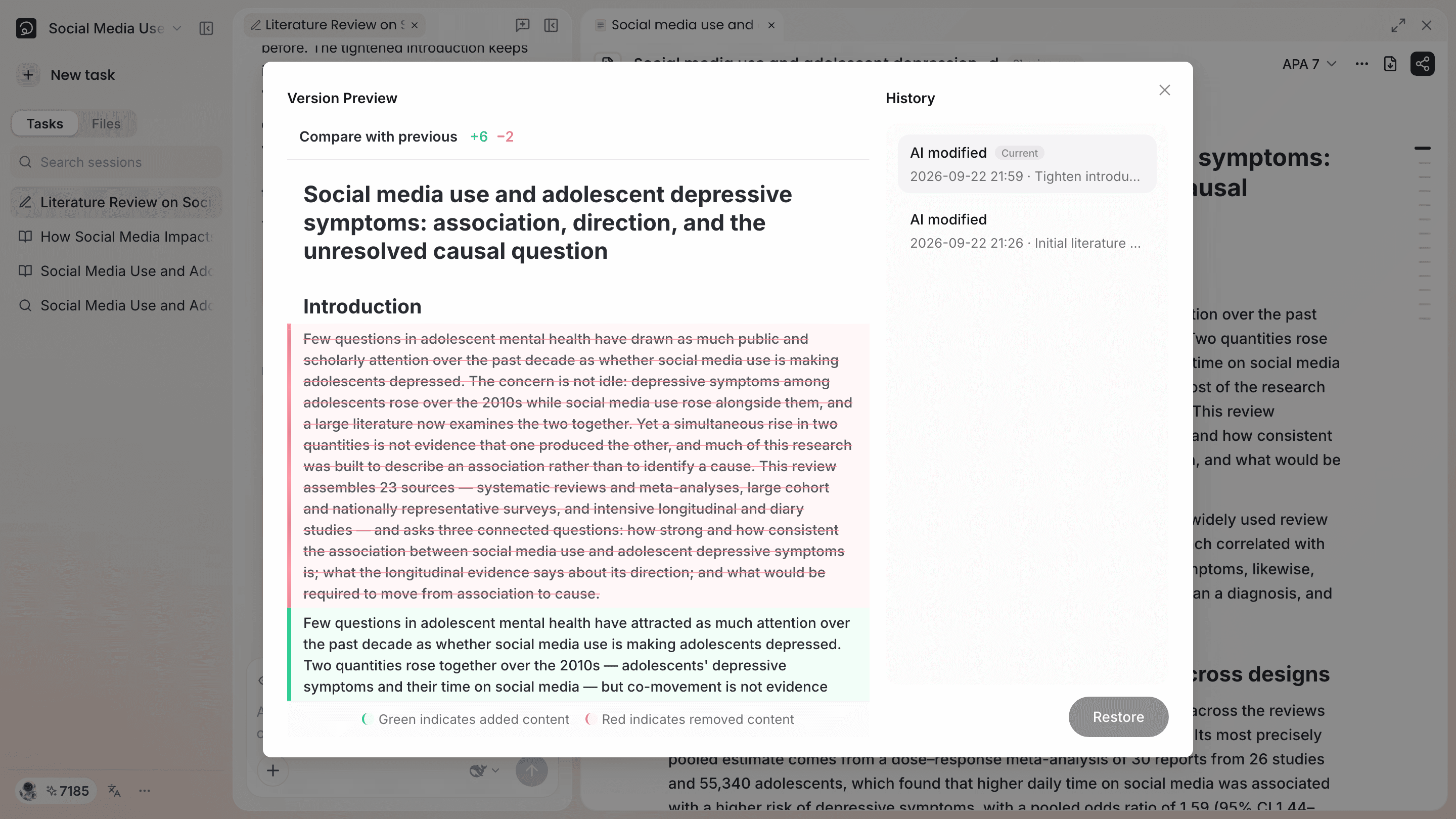
Every round of AI editing is recorded in the version history, and every version is kept — nothing is lost. Click the "…" in the manuscript's title bar and choose View version history to compare any two versions; to go back to an earlier state, select that version and click Restore.
What to read next
- Check citations and set them in the style a journal requires: read Citations and tracing claims
- Export the manuscript for submission: read Export your work